

Timeline
The timeline views show tasks as bars across days. They share the same controls and differ only in zoom.
| Week | Month |
|---|---|
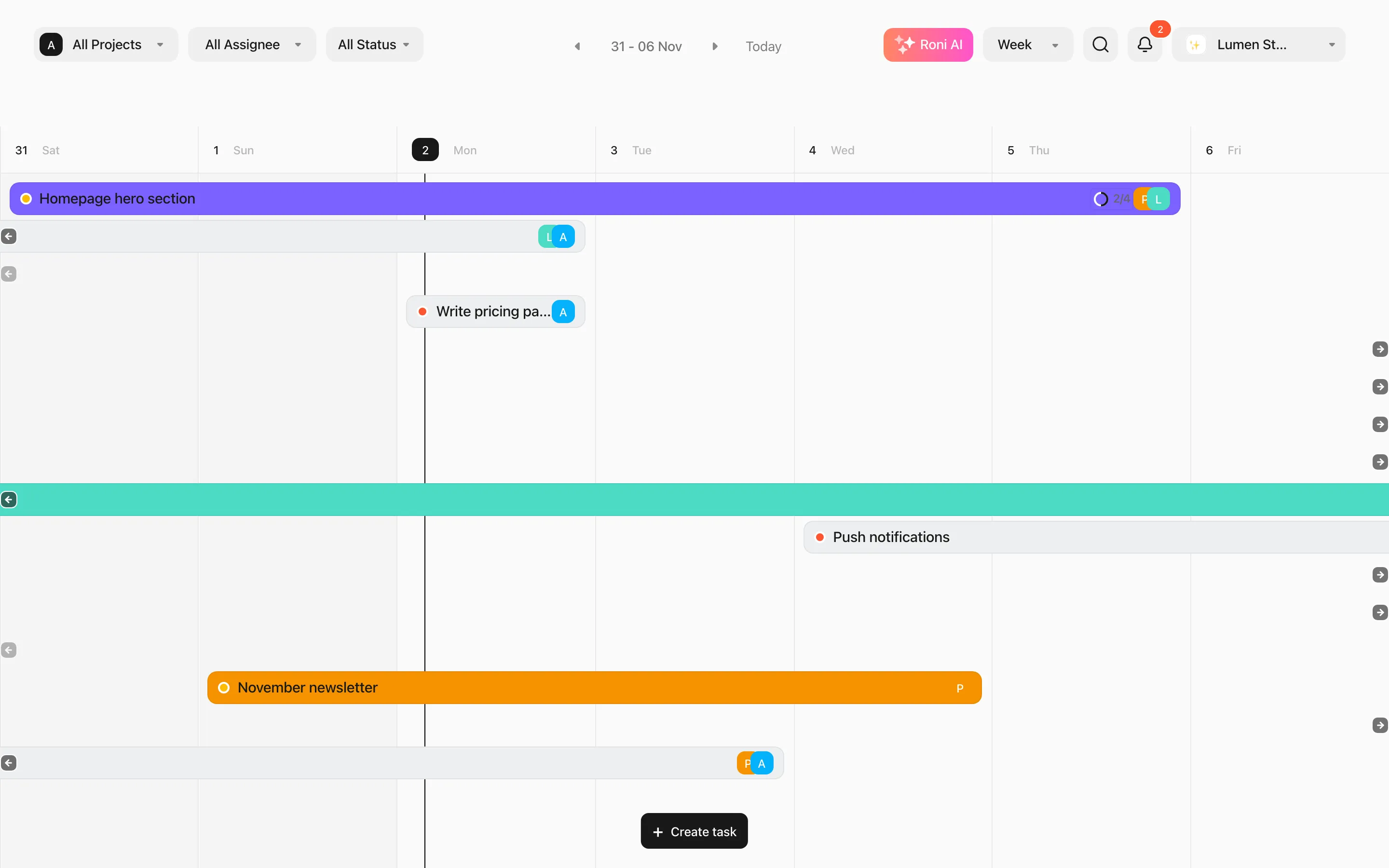 |
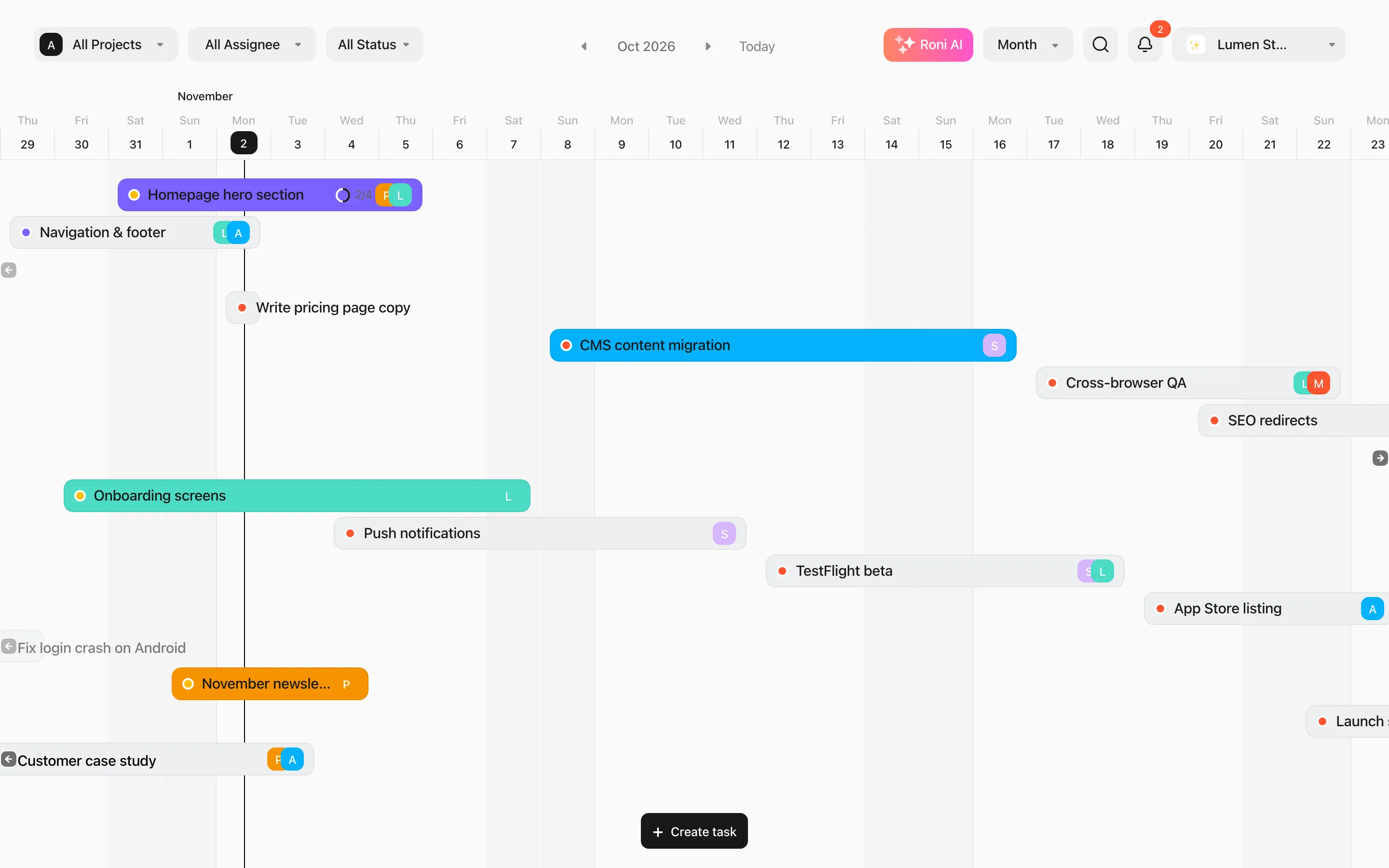 |
| Quarter | Year |
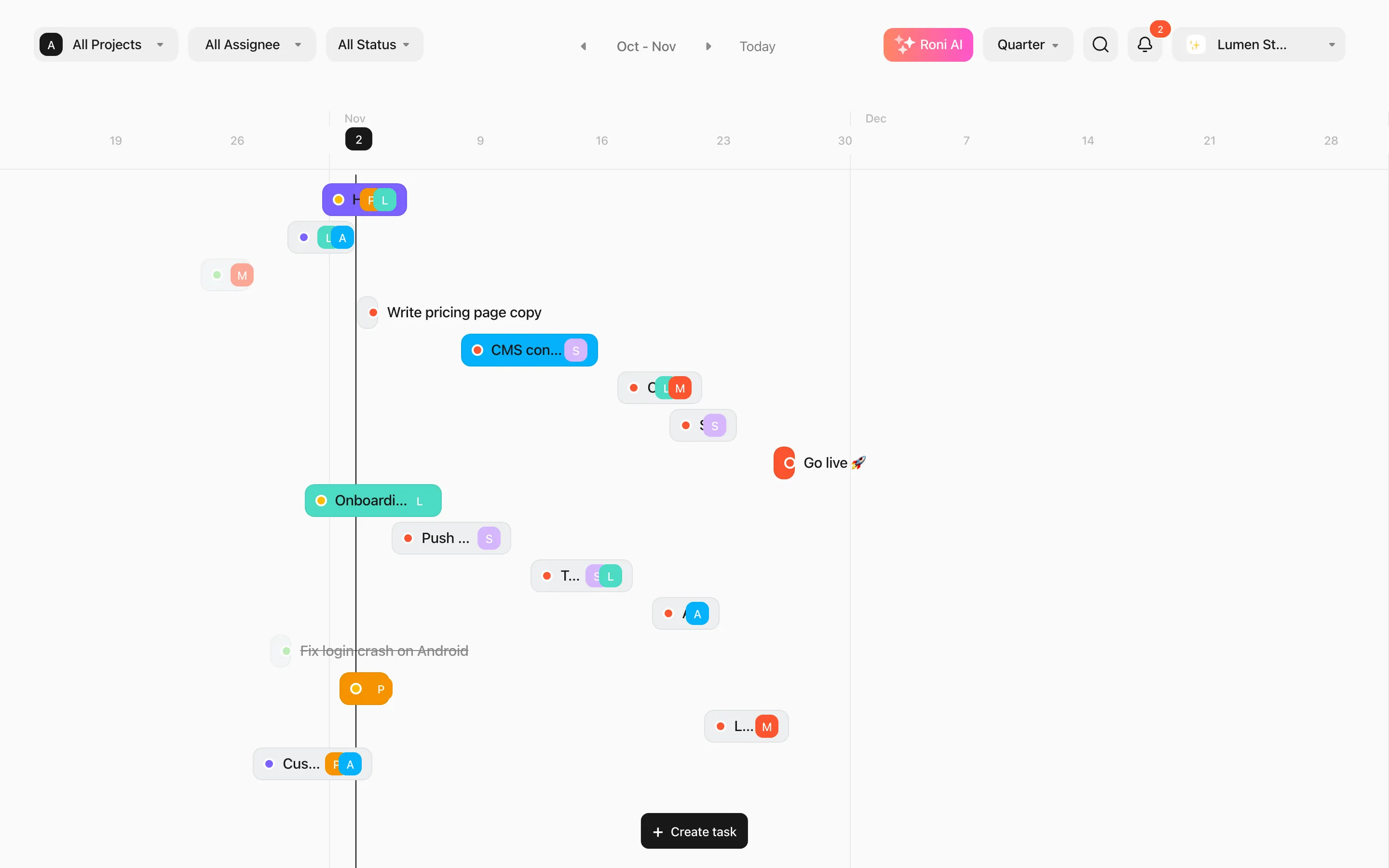 |
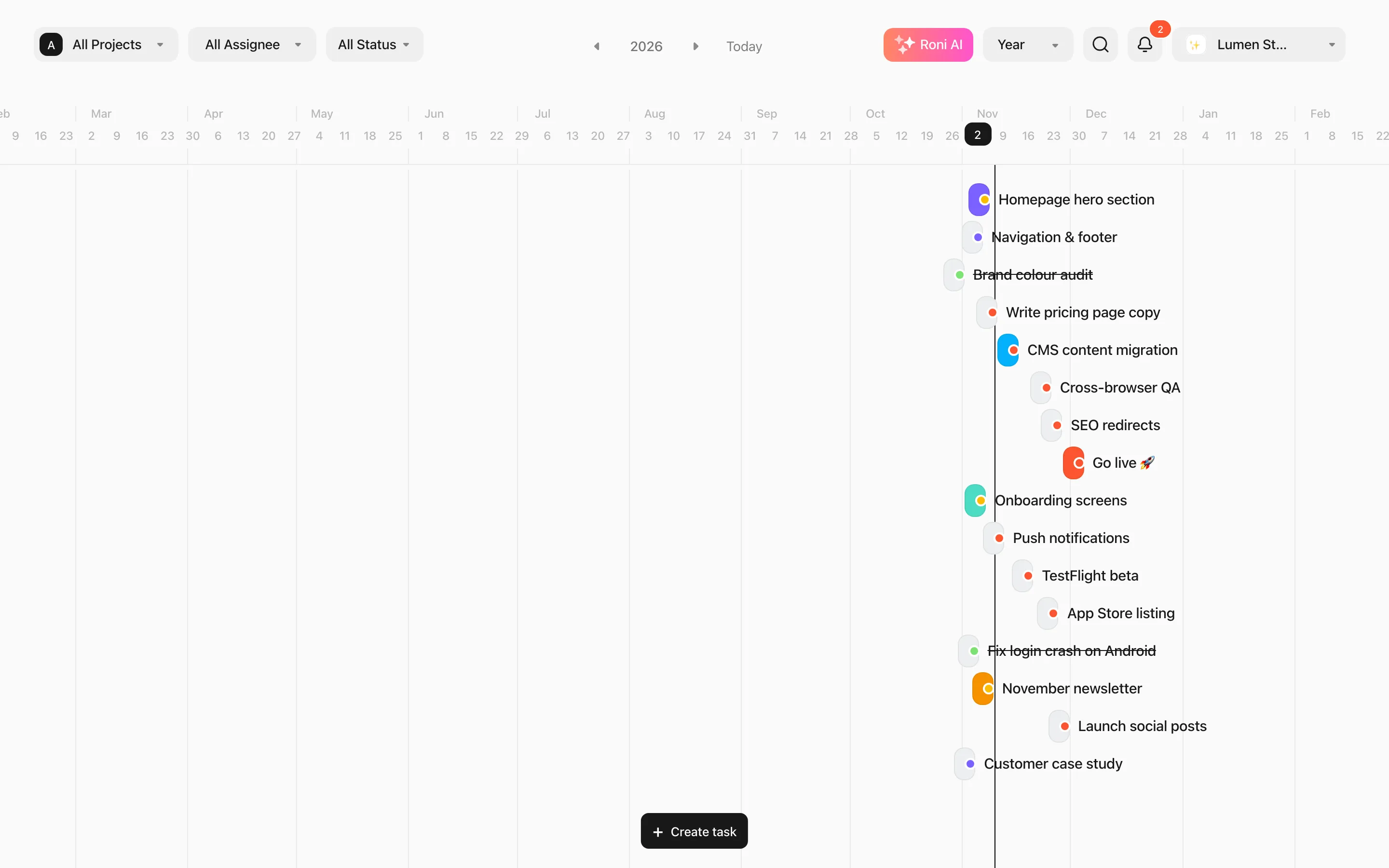 |
Moving around
Section titled “Moving around”- Scroll sideways (trackpad or ⇧ + wheel) to move through time.
- Use ‹ › to jump by a period and Today to come back.
- Click the date in the header to pick a date.
Planning by dragging
Section titled “Planning by dragging”- Drag a bar to move a task to other dates.
- Drag a bar’s left or right edge to change its start or due date.
- Near the edge of the screen the timeline scrolls for you.
- Press Esc while dragging to cancel.
- Press U to undo and R to redo date changes (the last 5).
Completed tasks are greyed out. Milestones appear as ◆ in the header.
The side panel
Section titled “The side panel”Press Esc (or use the arrow on the left) to show the side panel. It lists the tasks in the same order as the rows: rename tasks in place, open them, drag to reorder rows, or Add Task.
Weekends
Section titled “Weekends”If your team doesn’t work weekends, turn off Show weekends in Appearance to hide Saturday and Sunday in the Week view.