

Sharing & invite links
Share a read-only view
Section titled “Share a read-only view”You can give anyone — a client, for example — a link to a live, read-only view of a project. They don’t need a Roni account.
- Select a single project in the header filter.
- Click the share button at the bottom right of the view.
- Click Create Link, then Copy Link.
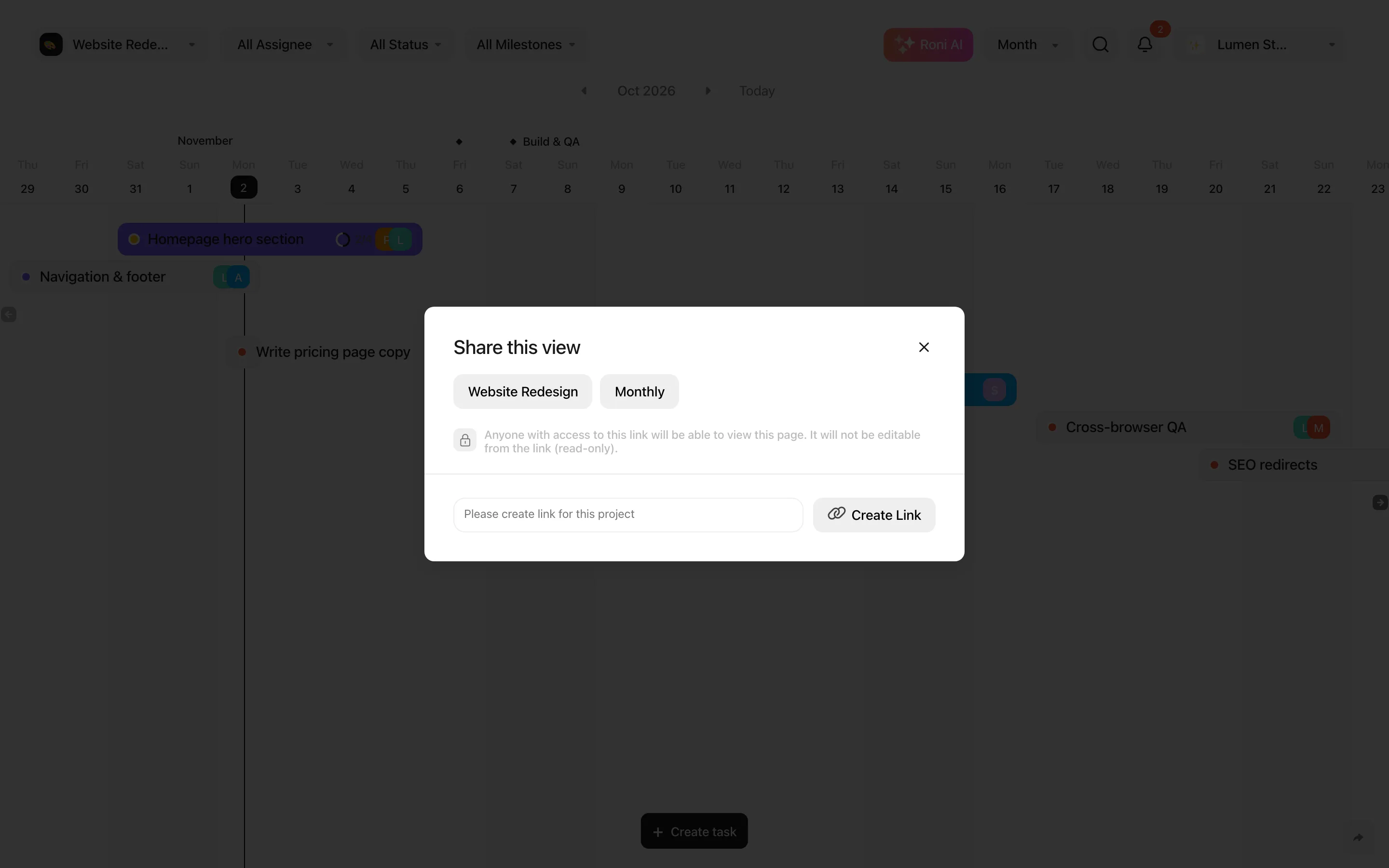
The link opens the same view you shared from: Week, Month, Year, Kanban, List or Calendar (sharing from Today opens Month). Visitors can switch between these views and open tasks, but they can’t change anything. Changes your team makes appear on the shared page right away.
To stop sharing, open the dialog again and click Disable. Anyone with the old link loses access.
Invite people with a link
Section titled “Invite people with a link”Invite links let people join without you typing their email addresses.
- Workspace invite link — on the Members page. Anyone who opens it joins the workspace as a Guest.
- Project invite link — in the project settings under Project Members. People join the workspace as Guests and become members of that project. If they are already in the workspace, they keep their current role.
Use New Link or Reset to replace a link that has been shared too widely; the old one stops working.