

The task window
Click any task to open it. Everything about the task lives in one window.
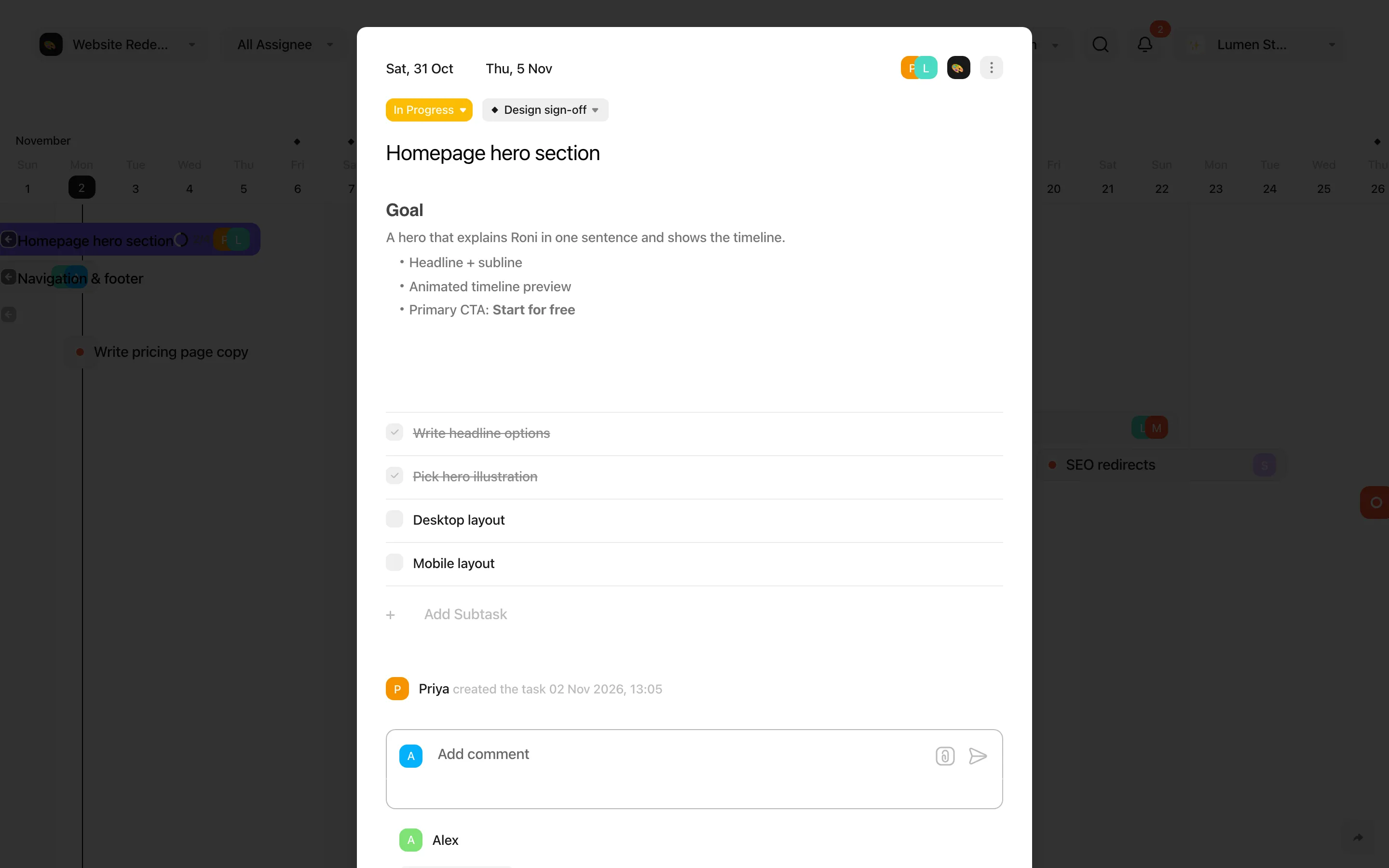
Dates and times
Section titled “Dates and times”Click the dates at the top left to open the date picker. Choose a start and a due date — or a single day. Use Add start time / Add end time for meetings and deadlines with a time, and Clear dates to remove them. Tasks without dates only appear in Today and List.
Status, assignees and milestone
Section titled “Status, assignees and milestone”- Status — the coloured pill. Statuses are shared by the whole workspace; see Workspace settings to add your own.
- Assignees — the avatars at the top right. Assigned people get notifications about the task.
- Milestone — Set Milestone links the task to a milestone.
- Colour — pick a colour in the menu to make the task stand out on the timeline and board.
The task menu
Section titled “The task menu”Click ⋯ at the top right:
| Item | What it does |
|---|---|
| Get Notify / Stop Notify | Follow the task to get notified about changes, or mute it — even if you’re assigned. |
| Move | Move the task (and optionally other tasks) to another project. |
| Duplicate | Copy the task into a project, optionally with its comments, subtasks, members and files. |
| Share | Copy the task’s link. Teammates need to be signed in to open it. |
| Activity | Show the task’s history: who changed the status, dates, title, description, project, milestone, assignees and subtasks. |
| Delete | Move the task to Trash. You can Undo right away, or restore it from Trash within 30 days. |
Window, side panel or full screen
Section titled “Window, side panel or full screen”Tasks can open as a window, in a side panel next to your view, or full screen. Switch with ⌥ D, ⌥ S and ⌥ F. Your choice is remembered in this browser; the workspace default is set in Appearance.
While a task is open, ← and → move to the previous or next task.