

Projects
Projects group related tasks — a client, a product launch or an internal initiative. Only project members can see a project’s tasks.
Create a project
Section titled “Create a project”- Open the project filter at the top left and choose Add Project (or press S and pick Create a project).
- Enter a name and pick an emoji, logo or image.
- Add people. Anyone you add by email is invited to the workspace and the project as a Guest.
- Click Go to project.
On the Free plan you can have up to 5 active projects.
Project settings
Section titled “Project settings”Open the account sidebar and click the project under PROJECTS.
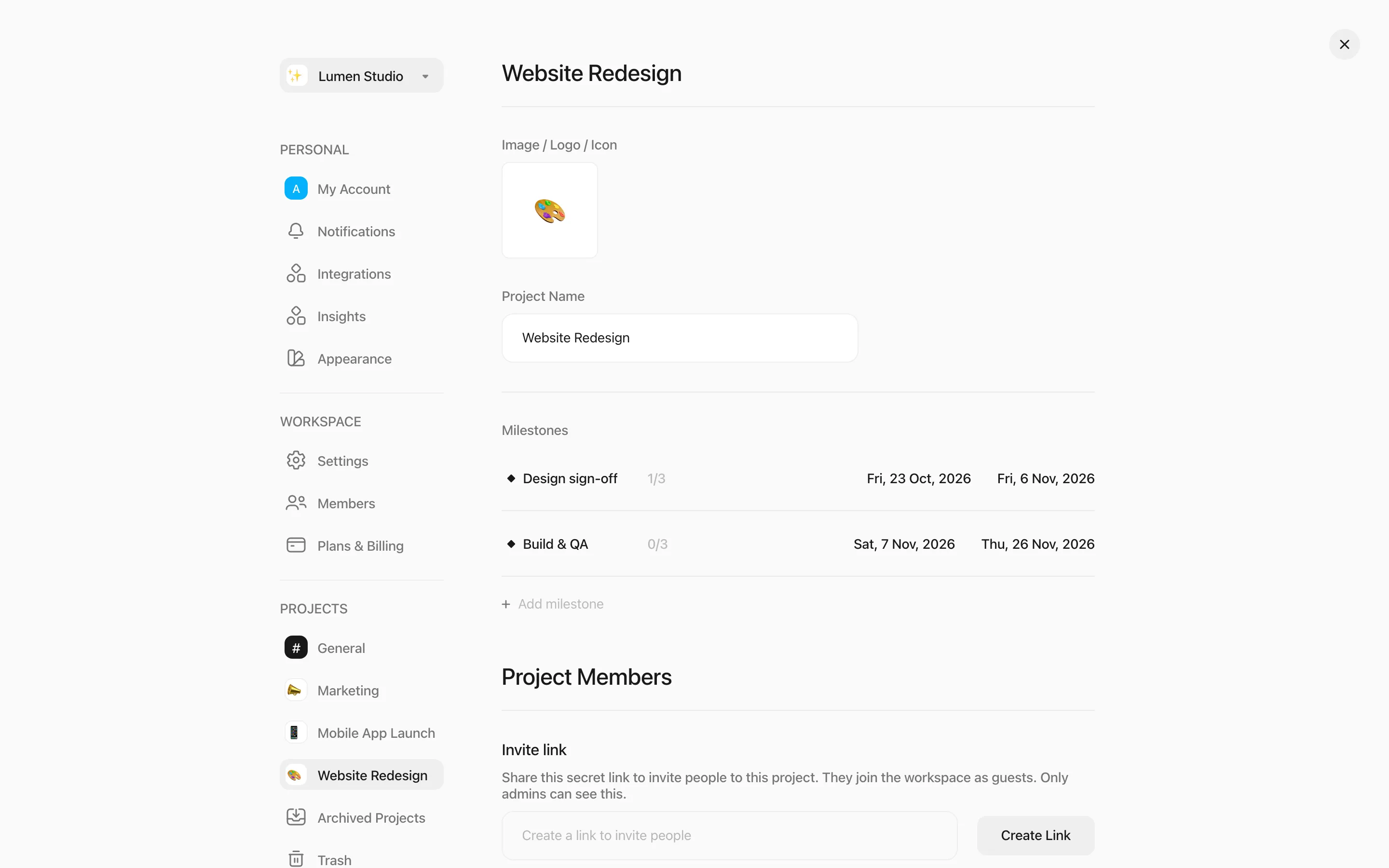
Here you can:
- Change the project’s name and logo.
- Manage milestones.
- See and remove Project Members, or create an invite link for the project (see Sharing).
- Browse the project’s Files. View all files opens a page where you can filter attachments by type.
- Connect a Slack channel to the project.
Duplicate a project
Section titled “Duplicate a project”Duplicate Project copies the project and all of its tasks. You can choose to also copy the project members, task assignees, subtasks, comments and comment attachments.
Archive or delete a project
Section titled “Archive or delete a project”- Archive Project hides the project from views and filters without deleting anything. Archived projects are listed under Archived Projects; unarchiving them is part of the Pro plan.
- Delete Project moves the project and its tasks to Trash, where it stays for 30 days.
Only Owners and Members can archive or delete projects. The default General project can’t be archived or deleted.