

Create tasks
There are several ways to add a task — pick the one that fits where you are.
The Create task button
Section titled “The Create task button”Click + Create task at the bottom of any view, or press C. Fill in the title, description, project, assignees, status and dates, then save.
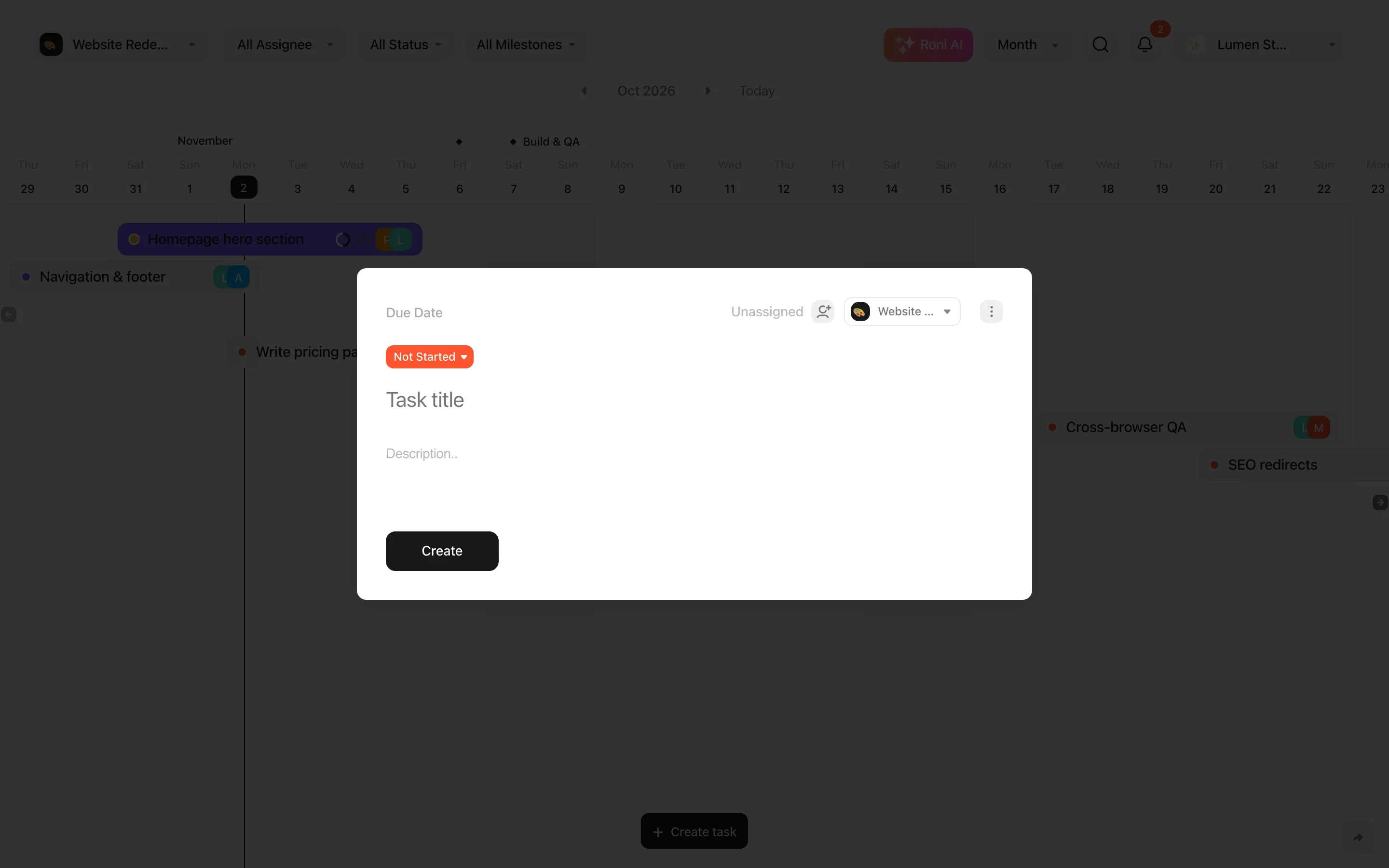
If you leave fields empty, the task is created for today, with the first status and the default colour.
Quick add
Section titled “Quick add”- Today — type in the Add task field at the top and press Enter. Press N to jump straight to it.
- Kanban — add a task at the bottom of a column; it gets that column’s status.
- Timeline — use Add Task in the last row or in the side panel.
- Calendar — double-click an empty day, or hover over a day and click Add Task.
Quick-added tasks go to the project selected in the header filter.
AI title suggestions
Section titled “AI title suggestions”While you type a title, Roni may suggest how to finish it. Press Tab or → to accept the suggestion, or Esc to dismiss it. Suggestions don’t count towards your Roni AI quota.
Plan many tasks at once
Section titled “Plan many tasks at once”Describe a project to Roni AI and it creates a full task list with subtasks and dates for you.