

Notifications
The bell
Section titled “The bell”Click the bell in the header to see your notifications. Switch between All and Unread, and use Mark All As Read to clear the badge. Click a notification to open its task.
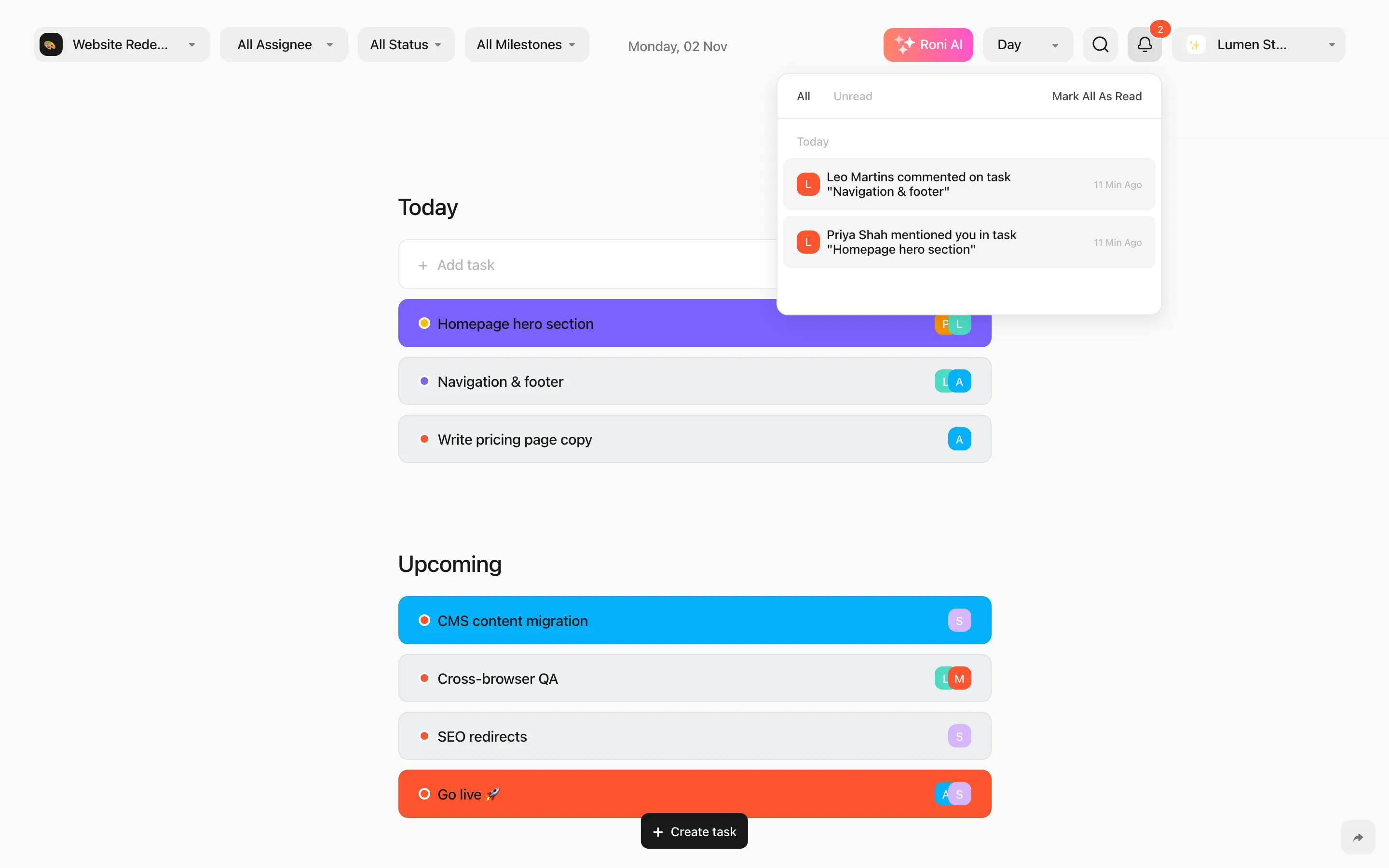
You’re notified when someone:
- comments on a task you’re assigned to or following,
- @mentions you,
- changes the status of your task,
- assigns you to a task,
- adds you to a project, or joins a project or workspace you’re in.
Notifications about a task go to its assignees and to people who chose Get Notify. Stop Notify mutes a task for you. See Get Notify.
Notification settings
Section titled “Notification settings”Open Notifications in the account sidebar. Settings are per workspace.
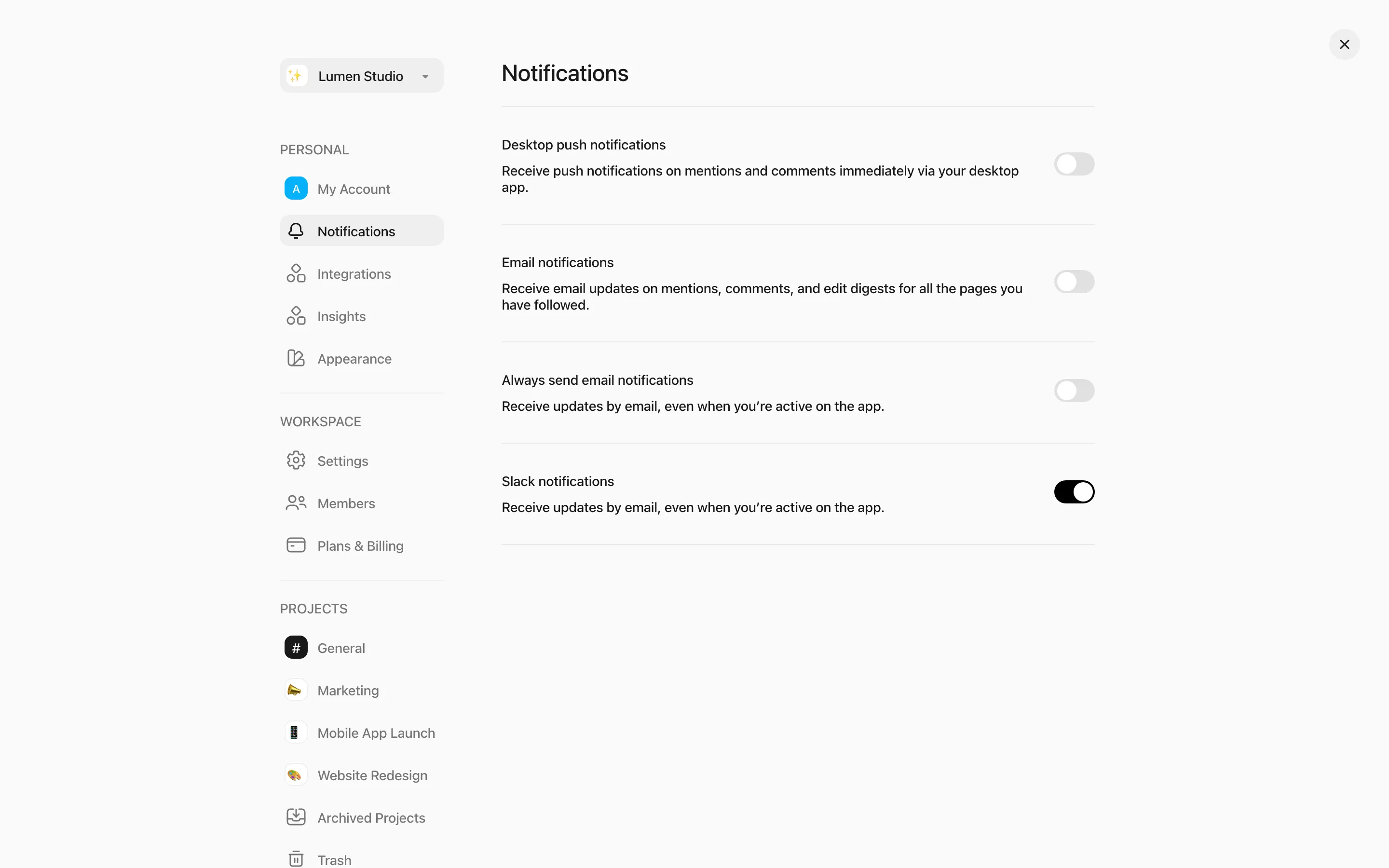
- Desktop push notifications — your browser will ask for permission. They appear while Roni is open in a tab.
- Email notifications — sent only when you’re not active in Roni.
- Always send email notifications — email even when you’re online.
- Slack notifications — direct messages in Slack once you connect Slack.