

Members & roles
Open Members from the user menu or the account sidebar.
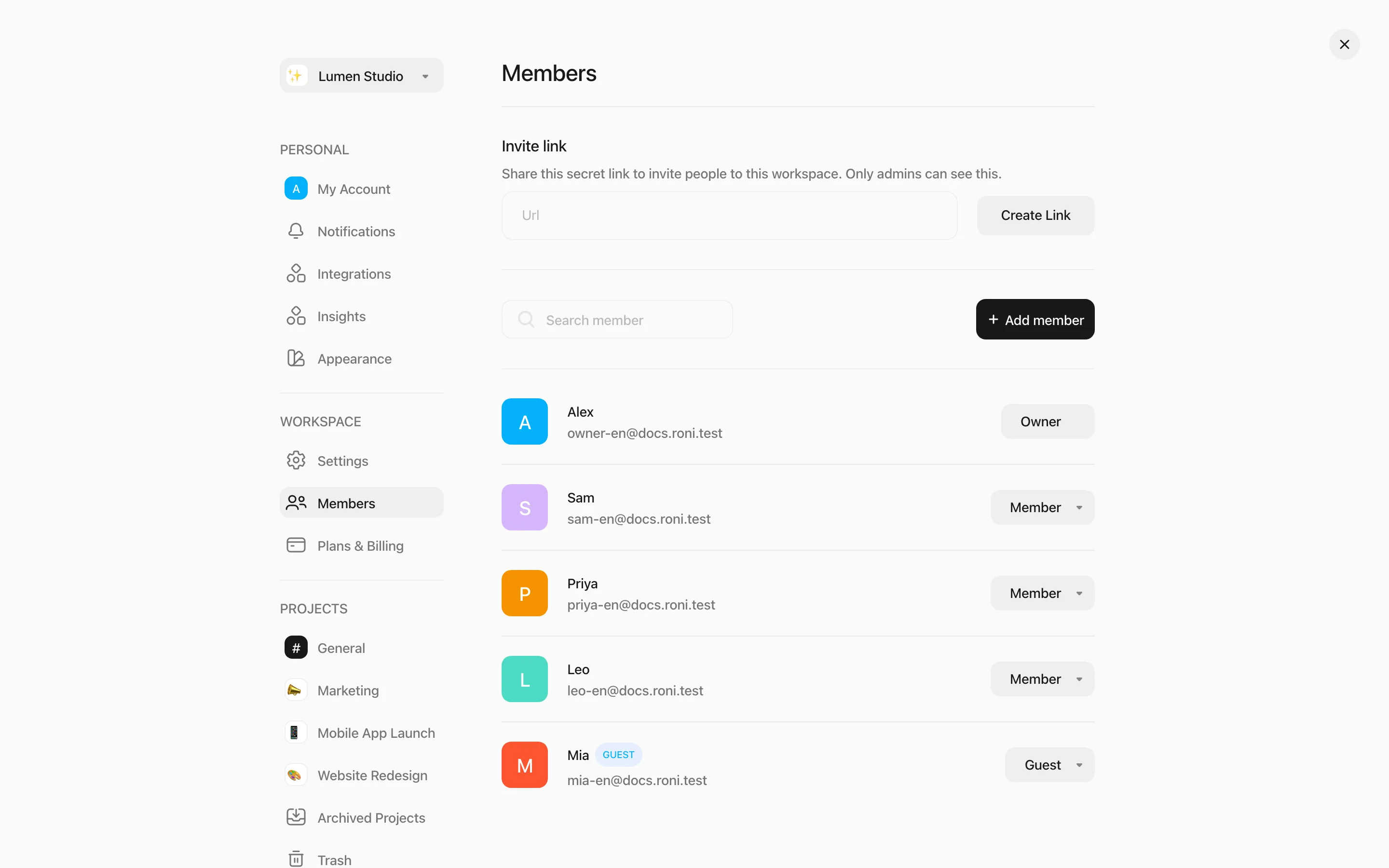
| Owner | Member | Guest | |
|---|---|---|---|
| See and work on tasks in their projects | ✓ | ✓ | ✓ |
| Create and edit tasks, comment, assign people | ✓ | ✓ | ✓ |
| Delete tasks | Any | Any | Only their own |
| Create, archive, delete and share projects | ✓ | ✓ | Share only |
| Manage project members and milestones | ✓ | ✓ | — |
| Invite people and change roles | ✓ | ✓ | — |
| Workspace settings and statuses | ✓ | ✓ | — |
| Plans & billing, delete the workspace, empty Trash | ✓ | — | — |
| Paid seat | ✓ | ✓ | Free |
Everyone — including the Owner — only sees projects they’ve been added to.
Invite people
Section titled “Invite people”- Add member — enter an email address and choose As a member (a paid seat) or As a guest (free). They get an email invite that’s valid for 30 days. Pending invites are marked PENDING; you can resend or delete them from the row menu.
- Invite link — Create Link and share it. Anyone who opens it joins as a Guest. Use New Link to replace it or Disable to turn it off.
Change a role or remove someone
Section titled “Change a role or remove someone”Use the menu on a member’s row to switch between Member and Guest, Deactivate Member (they lose access but their work stays), Activate Member again, or Delete Member.