

Roni AI
Roni AI turns a sentence like “Launch a new website in six weeks” into a task list you can review, adjust and add to a project.
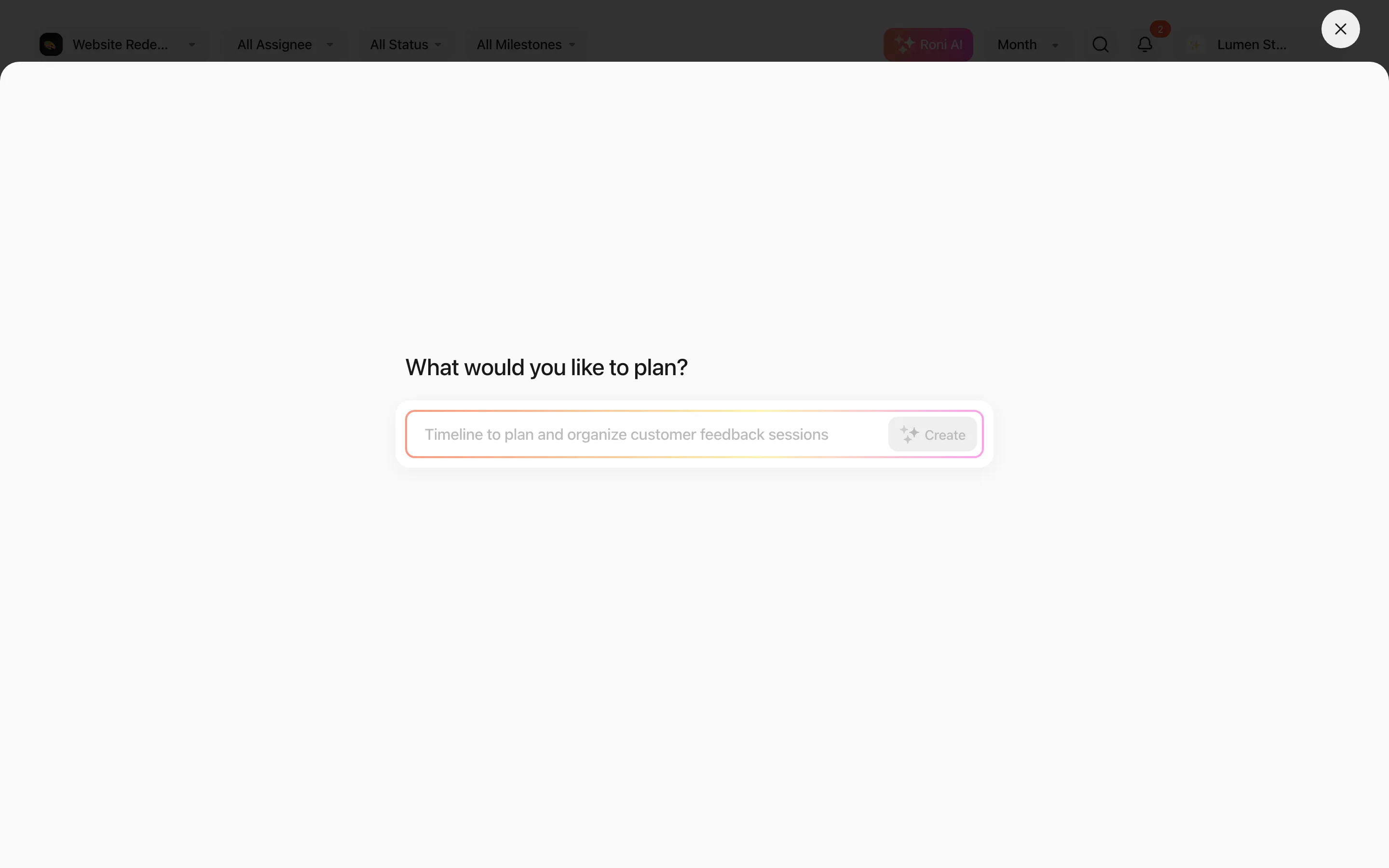
Create a plan
Section titled “Create a plan”- Click Roni AI in the header.
- Describe what you’d like to plan and press Create.
- Review the Project Task List. Untick tasks or subtasks you don’t need.
- Refine it: write what to change, or click Make longer for more detail.
- Optionally turn on Add start and due date and click Generate plan — Roni spreads the tasks over working days, skipping weekends.
- Choose New project or Existing project and click Create Project / Add to Project.
Use Open full preview in a new tab to see the plan on a timeline before you add it.
A plan can have up to 30 tasks with up to 15 subtasks each.
AI in the task window
Section titled “AI in the task window”- Write with Roni AI in the description’s / menu drafts a description and suggests subtasks. See Descriptions & files.
- Title suggestions complete task titles as you type. See Create tasks.
Limits
Section titled “Limits”| Free | Pro | |
|---|---|---|
| Roni AI plans and Write with Roni AI | 10 per month per workspace | Unlimited |
| Title suggestions | Unlimited | Unlimited |
To keep things fair, each person can make up to 20 AI requests every 10 minutes.